
The warning arrives at the worst possible moment: you are trying to send something, and Google tells you the account is full. The instinct is to open Gmail and start deleting old newsletters, which is almost exactly the wrong move.
Your 15 GB is shared across Gmail, Drive and Photos. Newsletters weigh almost nothing. What is actually filling the account is usually one of three things, and none of them is in your inbox.
Find out where the space actually went
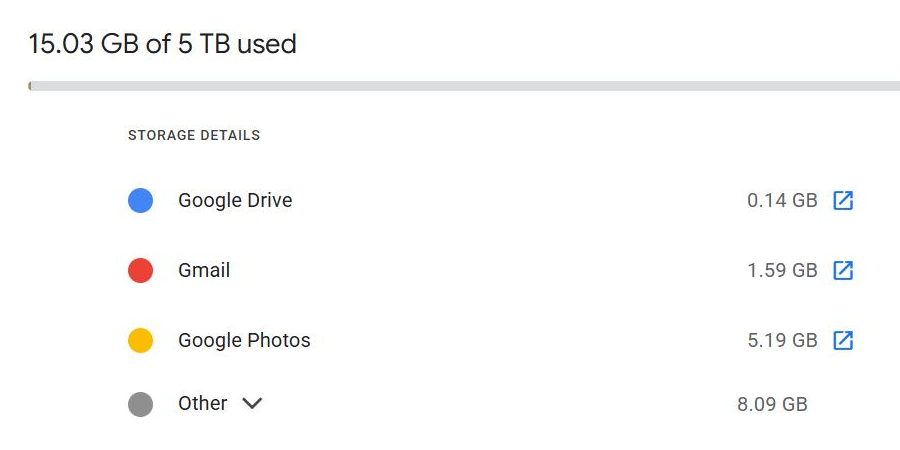
Before deleting anything, open one.google.com/storage. It shows the split across the three services and, more usefully, links to a cleanup tool that lists your largest items across all of them at once.
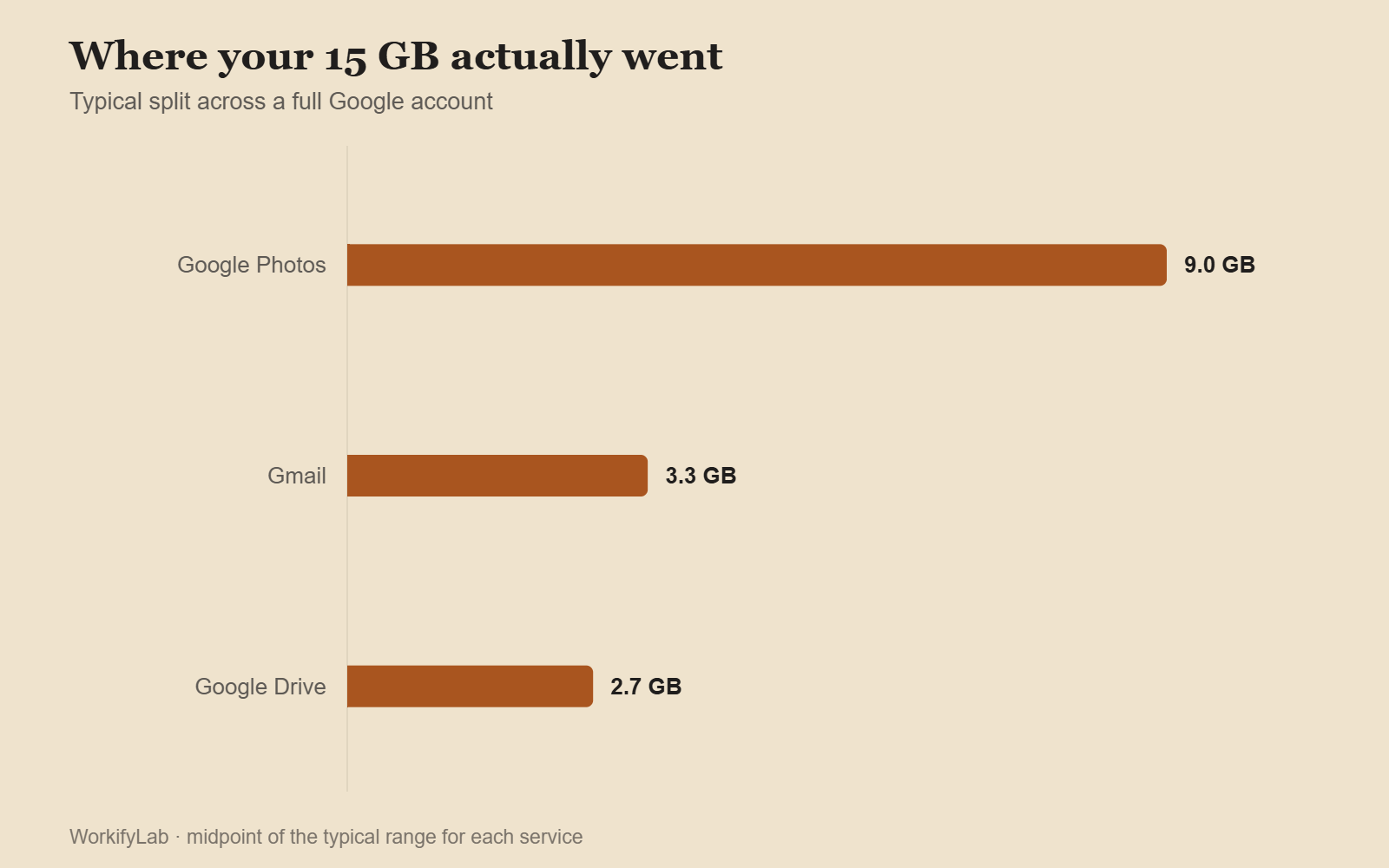
In most full accounts the breakdown looks something like this:
| Where | Typical share | What it actually is |
|---|---|---|
| Google Photos | 50 – 70% | Original-quality photos and video since June 2021 |
| Gmail | 15 – 30% | A few hundred large attachments, plus Bin and Spam |
| Google Drive | 10 – 25% | Old uploads, shared files you own, hidden app data |

The order to delete in
Work down this list. Most people recover several gigabytes before reaching step four.
- Empty the Bin in all three services. Gmail, Drive and Photos each keep deleted items for 30 days and each still counts them against your quota. This alone often frees 1–3 GB.
- Empty Spam. Same story, and it is usually larger than people expect.
- Delete large videos in Photos. Sort by size in the storage manager. Ten phone videos is often 4 GB.
- Delete large Gmail attachments. Search
has:attachment larger:10Mand work through it. - Check Drive for files you forgot you own. Sort by size in Drive. Old exports, zip files and installers hide there for years.
- Look at hidden app data. Drive settings show storage used by connected apps — old backups from apps you no longer use.
Gmail searches that find the heavy things
Paste these straight into the Gmail search bar. They cost nothing to run and each one usually surfaces something worth removing.
larger:10M
has:attachment larger:5M older_than:2y
filename:zip OR filename:dmg OR filename:exe
in:anywhere larger:25M
category:promotions older_than:1y
from:no-reply older_than:2y
One thing that catches people out: deleting a message from a conversation does not shrink the attachment if the same file appears in a later reply. Check the whole thread, not the single email.
And after you delete anything in Gmail, empty the Bin again. Until you do, nothing has actually been freed.

The Google Photos setting worth changing first
Since June 2021, every photo you back up counts against your quota. Before that, “High quality” uploads were free and unlimited — which is why accounts that felt fine for a decade suddenly filled in three years.
Two changes make a real difference:
- Switch backup quality to Storage Saver. New uploads are compressed to roughly a third of the size, at a quality difference you will not see on a phone or a laptop screen.
- Run “Recover storage”. In Photos settings, this recompresses everything already uploaded at original quality. It is irreversible, and on a photo-heavy account it frequently frees 5 to 15 GB in one pass.
Before running the second one, download anything you would want at full resolution — printed work, anything from a proper camera. For phone snapshots, the compression is genuinely hard to notice.
What happens if you ignore it
Not just “you cannot send email”. Once you are over quota:
- Incoming mail bounces back to the sender — you never see it and never know
- Photos stops backing up your phone silently
- You cannot create or edit files in Docs, Sheets or Slides
- After two years over quota, Google may delete content across all three services
The bouncing mail is the one that actually hurts. It is invisible, and by the time someone mentions they emailed you last week, it is gone.

When paying is the better answer
| Plan | Storage | Monthly | Annual |
|---|---|---|---|
| Free | 15 GB | — | — |
| Basic | 100 GB | ~$1.99 | ~$19.99 |
| Standard | 200 GB | ~$2.99 | ~$29.99 |
| Premium | 2 TB | ~$9.99 | ~$99.99 |
If this is the second or third time you have done a cleanup, $20 a year is probably worth more than the hours you keep spending. Deleting photos to save two dollars a month is a bad trade, and it is a trade people make surprisingly often.
Common questions
Do Google Docs count against storage?
Docs, Sheets and Slides created in Google’s own formats do not count. Uploaded Word, Excel and PDF files do. So does anything in Drive you own, even if someone else uses it more than you.
Does deleting shared files free space?
Only if you are the owner. Files shared with you sit in someone else’s quota. Sort Drive by owner to see which large files are actually yours.
How long until space is released?
Usually minutes, occasionally up to 24 hours after emptying the Bin. If the number has not moved after a day, check that you emptied the Bin in all three services rather than just one.
Can I move things somewhere else instead?
While you are tidying up accounts, it is worth checking your passwords too — here is how Bitwarden, 1Password and Proton Pass compare in 2026.
Yes. Google Takeout exports everything in bulk to a local drive, and an external drive costs less than two years of storage. Just remember that a single copy on one drive is not a backup — it is one drive failure away from nothing.
Leave a Reply